How to turn off auto-apply recommendations in Google Ads, and what to check after
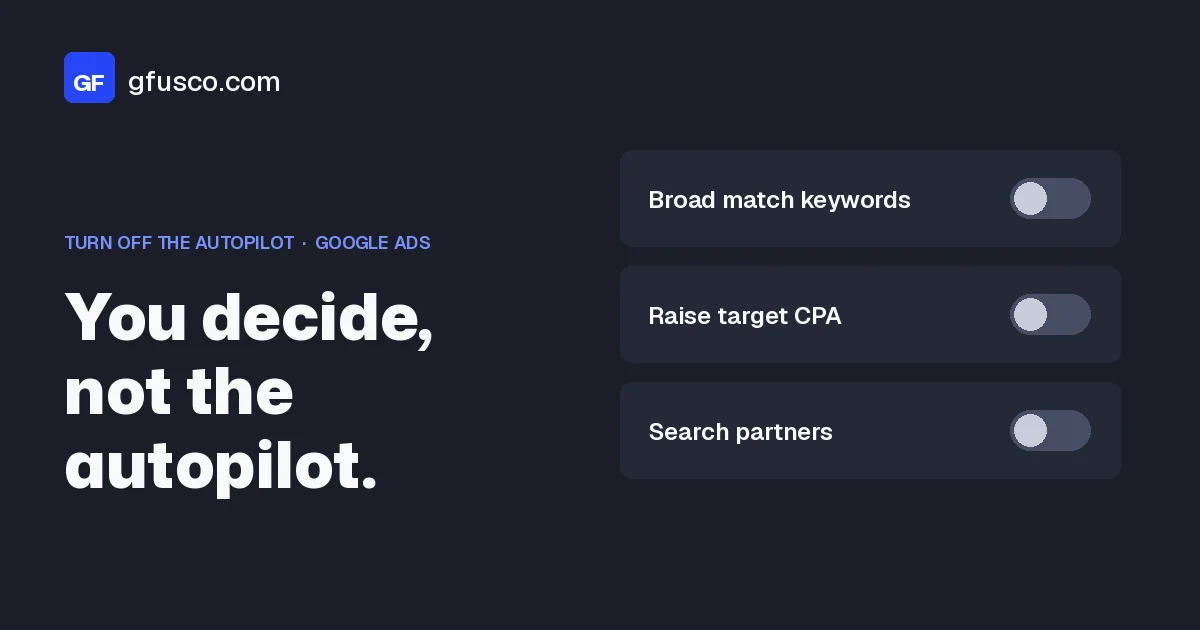
To turn off auto-apply recommendations in Google Ads, go to Campaigns, Recommendations, then Auto-apply in the top right. On the Manage tab, uncheck every recommendation and click Save. This applies to the whole account. Changes already made stay in place: you find them and undo them in Change history, usually within 30 days.
What are auto-apply recommendations?
On the Recommendations page Google suggests changes to the account: new keywords, different bid targets, broad match, more networks. Usually you apply them one by one. With auto-apply, Google applies them every day, when it thinks they fit.
You do not have to have turned it on yourself. A colleague, a previous agency or a call with Google support may have switched it on. The result is the same: the account changes and nobody decided it by looking at your business numbers.
It only works at account level. You can select the "Maintain your ads" or "Grow your business" bundles, or pick types one by one. Google checks every day which recommendations are eligible. According to the help page, auto-applying recommendations will not increase your budget. It can, though, change bid targets, keywords and networks, and therefore how much you actually spend.
The types that can run on their own sit in four groups: ads and assets, bidding, keywords and targeting, and measurement. Among them are "Adjust your CPA targets", "Adjust your ROAS targets", "Add broad match keywords", "Expand your reach with Google search partners" and "Use Display expansion". Those are the levers that move spend.
How do you turn them off, step by step?
First record the current state. Then you know what was on, since when, and who turned it on, before you switch it off.
- See what is on. Click the Campaigns icon, then Recommendations. In the top right, open Auto-apply settings and go to the History tab. You see each recommendation that is on, how many times it was applied in the past week, when it was last applied, and when it was first turned on.
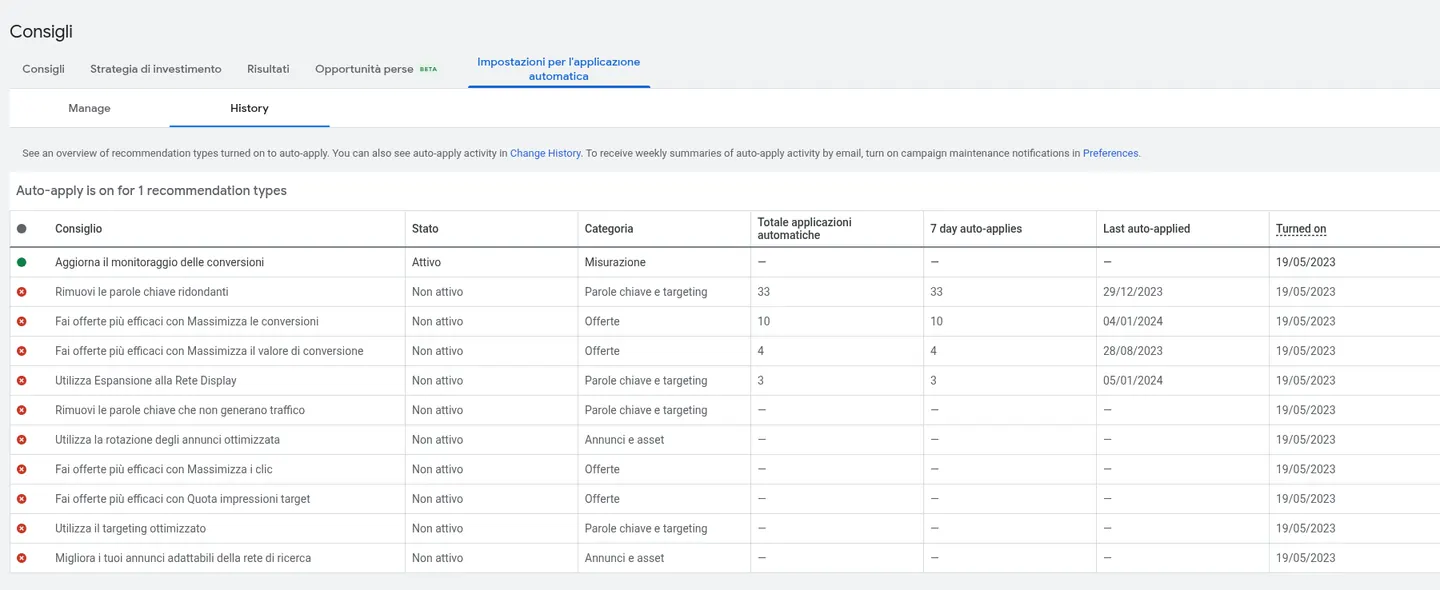
Recommendations, Auto-apply settings, History tab: for each type you see the status, how many times it was applied and since when it has been on. In this example only one is on. Client account, names and identifiers replaced. - Find out who turned it on. Open Change history, filter to the opt-in date, and look for the user ID that enrolled the account. If the account was in the Control Center beta before April 2021, the date you see may not be the real one, because of a data migration.
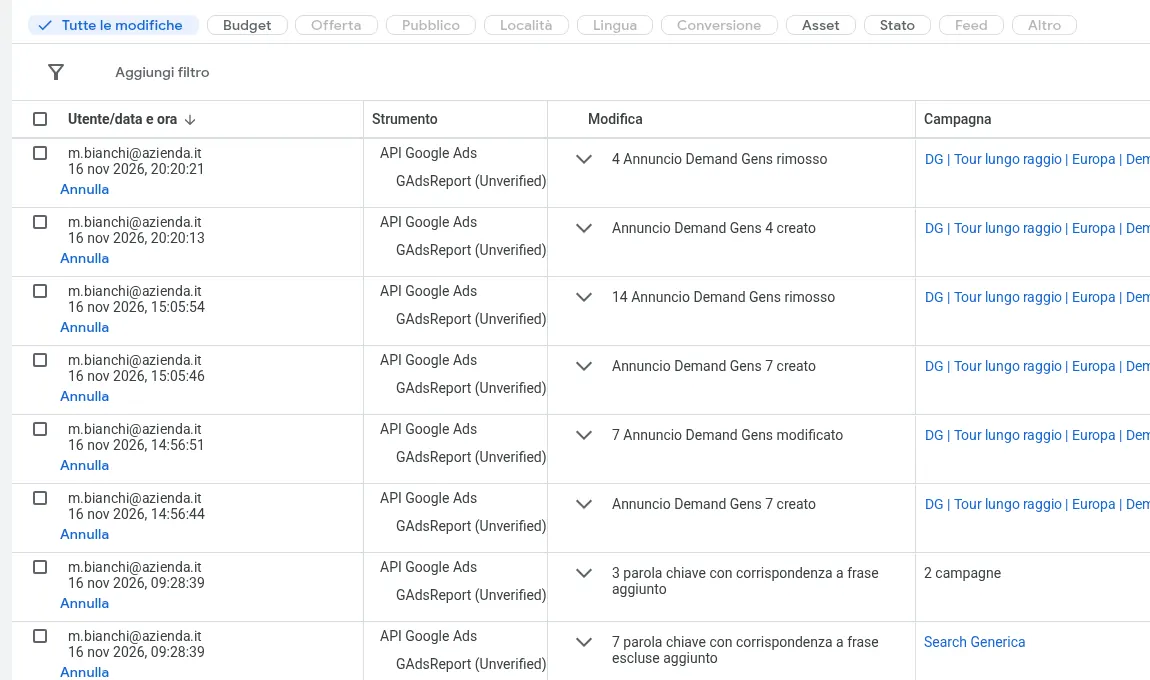
Change history: the User column shows who made the change and with which tool (here an API). Look for the row on the date auto-apply was turned on. Client account, names and identifiers replaced. - Turn it off. On the Manage tab, uncheck every recommendation you do not want and click Save. Or, on the History tab, select the recommendation and click Disable: a red dot appears next to it.
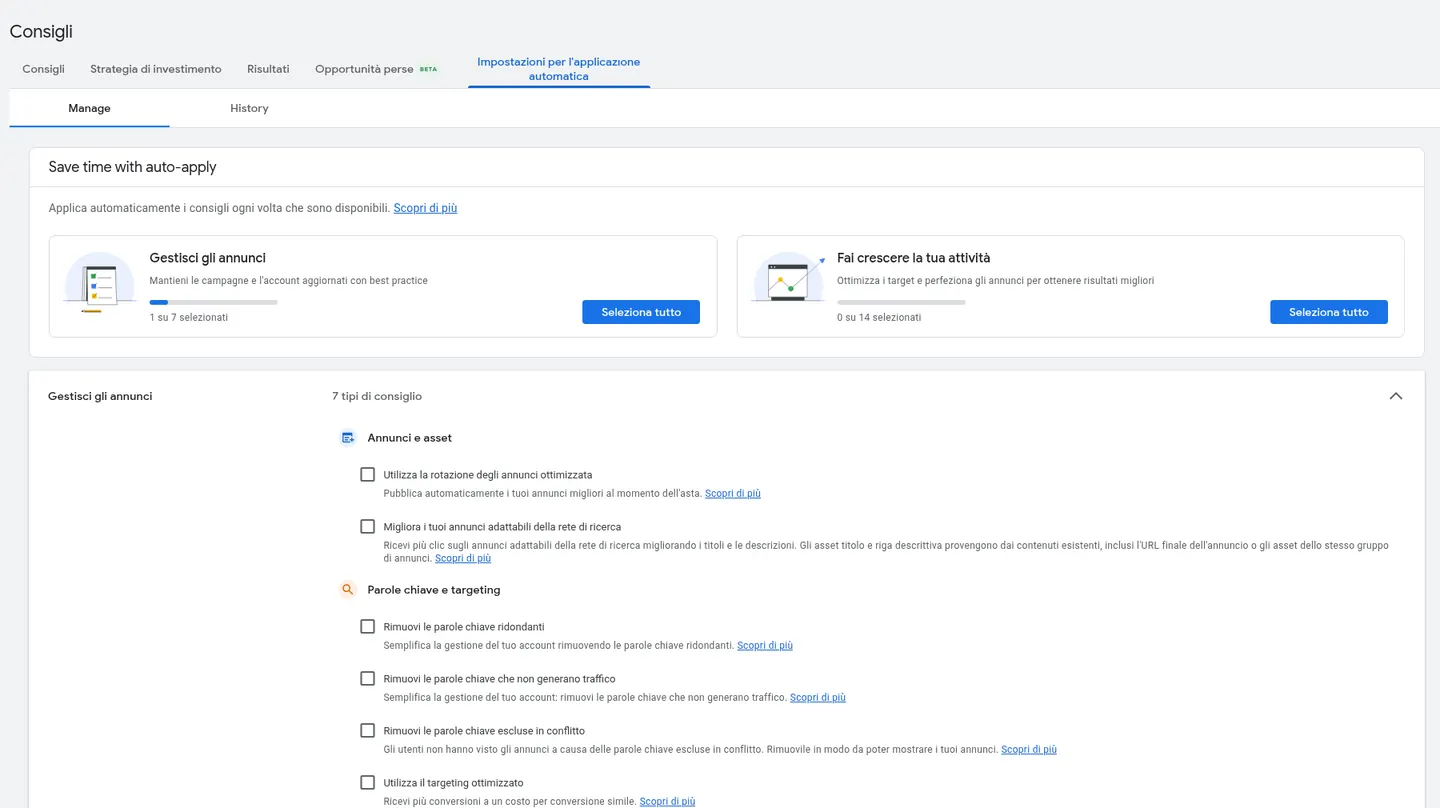
Manage tab: “Maintain your ads” and “Grow your business” with the recommendation checkboxes left empty. Then click Save. Client account, names and identifiers replaced. - Check Admin too. In the Admin menu, under Account settings, there is an Auto-apply item with the list of subscribed recommendations. From there a link takes you back to the settings. If the list is empty, you are done.
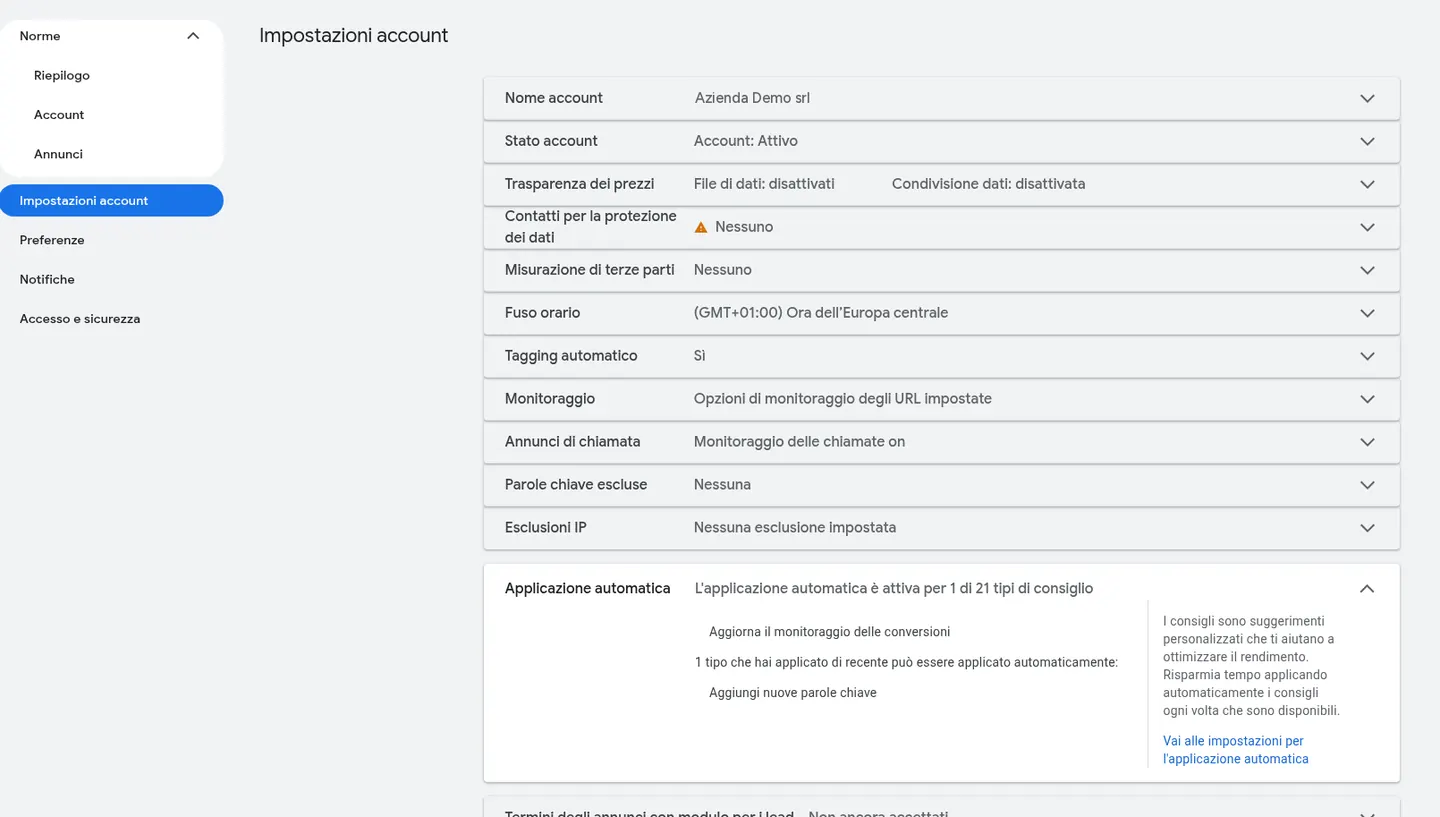
Admin, Account settings, Auto-apply: the list of recommendations that can run on their own. In this example one of 21 is on. Client account, names and identifiers replaced. - Undo what you did not want. Turning a type off only blocks future changes. For past ones, open Change history, filter the dates and click Undo on the row. Google lets you undo most changes from the last 30 days. If a row contains several changes, undo reverts them all together. A partial application cannot be undone: in that case, pause the added keyword or put back the removed one by hand. Change history covers the past two years.
If you leave even one type on, turn on campaign maintenance notifications in your preferences. You then get a weekly email summary of what auto-apply did.
Which recommendations would I keep on?
Almost none on auto-apply. If you really want to leave some on, keep the low-risk cleanup ones, such as "Remove redundant keywords" and "Remove non-serving keywords". Even these need a look: a keyword with no traffic for a year may be seasonal. Anything that touches bids, targets, broad match, search partners and the Display Network, I decide by hand.
"Remove conflicting negative keywords" also needs a look. A negative may be there on purpose, to keep out searches you do not want to pay for.
"Improve your Responsive Search Ads" can rewrite your ad text. Since 26 January 2026 the "Add responsive search ads" recommendation is no longer auto-applied, but "Improve" is still on the list. Text written by Google still goes out under your name: I read it first, I do not let it go live on its own.
A worked example with made-up numbers, not a client case. A lead-gen account has a target CPA of €40, and sales close one contact in ten. A recommendation applied on its own raises the target to €48 to get more volume. Google spends more, cost per customer goes from €400 to €480 if the close rate stays the same, and nobody notices for a month. With the cost per lead calculator you can see in a minute how much you can pay for a contact before you lose money. For ecommerce there is the break-even ROAS calculator.
Another example, also with made-up numbers. In 30 days, Change history shows 40 changes. 31 have a team member's email. 9 show as "Google Ads system": 5 keywords added, 3 broad match versions, 1 exact keyword removed. Those 9, if they are still inside 30 days, you undo. Then you turn those types off on the Manage tab.
What if the suggestion comes from a Google rep?
Not everything Google proposes goes through that page. Some automations are campaign settings, and some suggestions arrive by email or on a call.
On a European ecommerce account a Google rep had set up tests months earlier that went against my advice. Recently the Google account strategist agreed they had gone badly: a Performance Max campaign without a feed had ended up on Display and YouTube, and an AI Max test had failed because it was launched in a separate campaign with no history. In the same email they suggested turning on Final URL expansion and text customization.
Those are not bad suggestions by definition. They are suggestions that do not know your margins, your stock, or what sales considers a good lead. I read them all. I turn on what fits the account, not what fits the checklist. If you want to see what happens when a campaign gets the wrong signal, I wrote about it in Performance Max and junk leads.
AI Max for Search campaigns is not an auto-apply type. It turns on if someone accepts the card, or if it is already selected in a new campaign. Turning it on also turns on search term matching, text customization and Final URL expansion. I do not turn it on from the card. If I test it, I do it on purpose, in one campaign, and I keep the negatives and URL exclusions.
Common mistakes
- Turning auto-apply off and thinking past changes have been reversed. They have not. You undo them in Change history, usually within 30 days.
- Turning off only auto-apply and not checking AI Max, Performance Max asset optimization, or account-level automated assets. Those are different switches.
- Fixing search partners or Display expansion in the campaign, and leaving on the recommendations that can switch them back on.
- Chasing the optimization score. Google calls it an estimate, and says it is not used by Quality Score. Applying or dismissing a recommendation changes it. Dismissing a recommendation that does not fit your business is a fair choice. Dismissed cards can come back after 30 or 60 days.
- Not writing down who turned on what, before you intervene, and then being unable to explain to the owner what changed the account.
What should you check every week after?
Once auto-apply is off, a light check remains. My weekly AI check on an ecommerce account makes dozens of proposals (negatives, budgets, tROAS, feed labels) and applies none of them. I approve or reject them. It also tells me which checks it could not run, so I know where to look.
The second thing is Change history. On another ecommerce account the check found budgets changed by hand, negatives added, and an IP exclusion on many campaigns that did not appear in the agreed history. Without knowing what changed, you cannot read the results. Write down every change, including your own.
Filter the last 30 days and read the User column. Changes made by a person show an email address. Automated ones can appear as "Google Ads system" or similar names. If you see a change you did not want and you are still inside 30 days, undo it.
The third is not to trust a label on its own. On a B2B account a Search campaign spent almost twice its daily budget in one day and was losing impression share to budget. Google allows that: in one day you can spend up to twice the average daily budget, and in the month no more than 30.4 times. The response was not to raise the budget, because the cost per lead of that campaign was already above the account average.
Once a month I also review the Recommendations page by hand, apply what fits, dismiss the rest, and check that auto-apply is still off in Account settings.
FAQ
Does turning off auto-apply undo past changes?
No. It only blocks future ones. You undo past changes in Change history, usually within 30 days, or you put them back by hand. A partial application cannot be undone.
Can auto-apply recommendations raise my budget?
No. According to Google, raising the budget is not among the recommendations that apply on their own. They can, though, change bid targets, keywords and networks, and therefore how much you actually spend. Budget recommendations stay as cards that you apply yourself.
Can I turn auto-apply off for just one campaign?
No. Auto-apply applies to the whole account. You can only choose which recommendation types stay on.
Should I ignore all Google recommendations?
No. The Recommendations page is a useful list of things to look at. The point is who decides. Read each recommendation, compare it with the CRM or shop numbers, then apply it by hand if it makes sense.
How do I see who turned auto-apply on?
In Change history you find the user ID that opted in. The date each type was first turned on is on the History tab in Auto-apply settings.
Does the optimization score drop if I turn them off or dismiss them?
Google says applying or dismissing recommendations changes the score, which is an estimate and is not used by Quality Score. It is not the number I use to judge the account. I judge cost per customer, or cost per signed job.
Does AI Max turn on by itself through auto-apply?
No. It is not a type on that list. It turns on if someone accepts the card, or if it is already selected in a new Search campaign. Check it separately, in the campaign Settings.
How do I get the weekly email summary?
In your preferences, turn on campaign maintenance notifications. Google then sends a weekly summary of what auto-apply did.